Why Verdiem?
- Reliable Wake
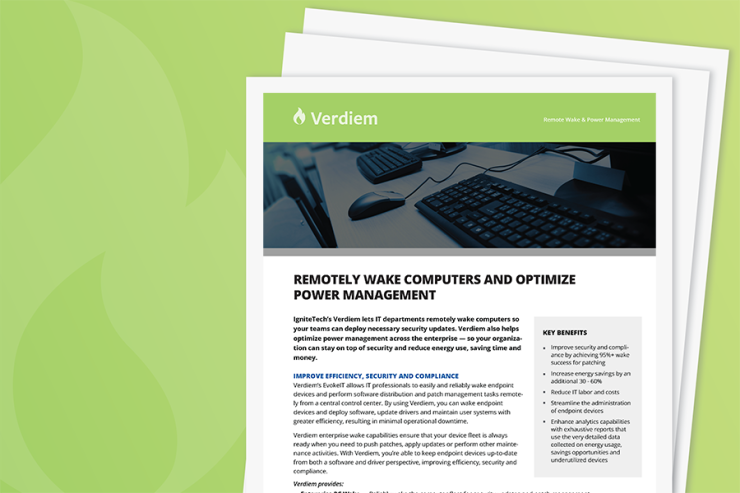
Take the worry out of security. You can easily wake your device fleet with a stunning 95%+ success rate compared to the industry standard 60%, helping you keep security updated and protect your fleet.
- Significant Energy Savings
Want to work more sustainably? Verdiem can help you monitor and reduce device energy consumption across your enterprise, supporting your green energy initiatives while saving you 30-60% on device energy costs.

- Wake-On-WAN
Reliably wake your computers to perform security updates.
- Energy Analytics
Leverage accurate usage data and reduce power consumption.
- Integrations
Make administration seamless with plugins to common systems management products like System Center Configuration Manager (SCCM).
NEW GENAI COPILOT FEATURE
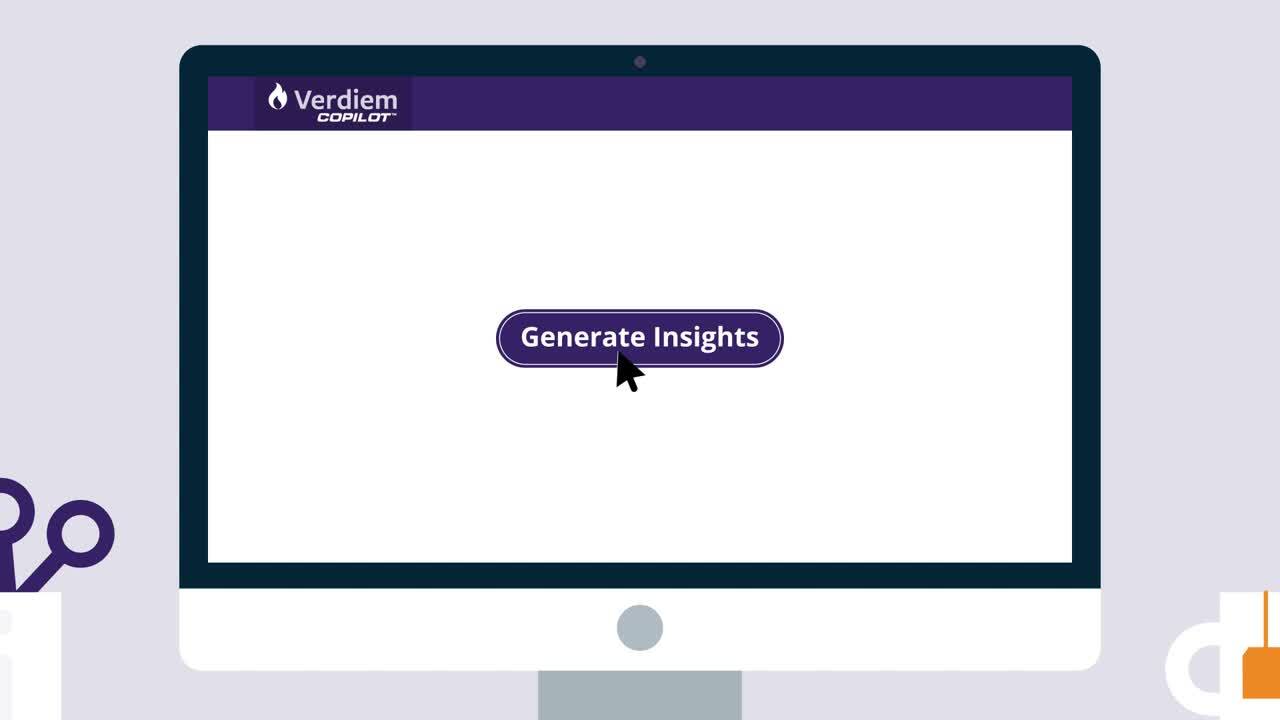
Verdiem CoPilot, powered by GenAI, offers a robust solution for automated reporting on computer fleet activity. Business stakeholders can click on "Generate Insights" to get concise, user-friendly summaries of CPU and display usage. By pinpointing opportunities for reducing power consumption in inactive modes, Verdiem CoPilot simplifies data analysis and facilitates more efficient energy use, leading to both time and cost savings.
BENEFITS
- Time-Saving: Automated summaries free up time otherwise spent on manual data analysis.
- Energy Efficiency: Identifies opportunities for reduced power consumption.
- Cost-Effective: Streamlined analytics leads to informed decisions that can save money.
COMPLEMENTARY IGNITETECH UNLIMITED SOLUTIONS
Check out the solutions below, available free as part of your Verdiem subscription:
AlertFind
AlertFind
Enterprise notifications to communicate important information, monitor responses and verify staff safety.
Kayako
Kayako
Deliver exceptional customer service in multiple languages across live chat, email, Facebook and Twitter.
Sococo
Sococo
Sococo is the online workplace where distributed teams come to work together each day, side-by-side.
Blog Posts
Jul 20, 2022
FogBugz and ScaleArc Transition to IgniteTech
IgniteTech today announced a transition of two software products from the ESW Capital portfolio to…

Jul 12, 2022
DNN Connect 2022: A trip report
Brad Mills, Chief Product Officer at IgniteTech, details his experience at the DNN Connect 2022…

Jul 1, 2022
The 3 Biggest Developments in Enterprise Cloud Today (and Why They're a Big Deal)
Get the top 3 developments in enterprise cloud and see how you can get updates on them for driving…

May 23, 2022
3 Things Enterprise Tech Leaders Need To Prioritize in 2022 and Beyond
To meet succeed in today’s turbulent business environment, enterprise tech leaders need to…

Jul 15, 2019
How Infobright's Columnar Database Supercharges Decision Making and Supports Organizational Agility
Enterprises are moving away from conventional OLTP relational databases in search of more convenient…
Mar 7, 2019
How an Event Data Warehouse Helps Meet Compliance Demands
Event data warehouse solutions are essential to meeting today’s compliance demands, helping…